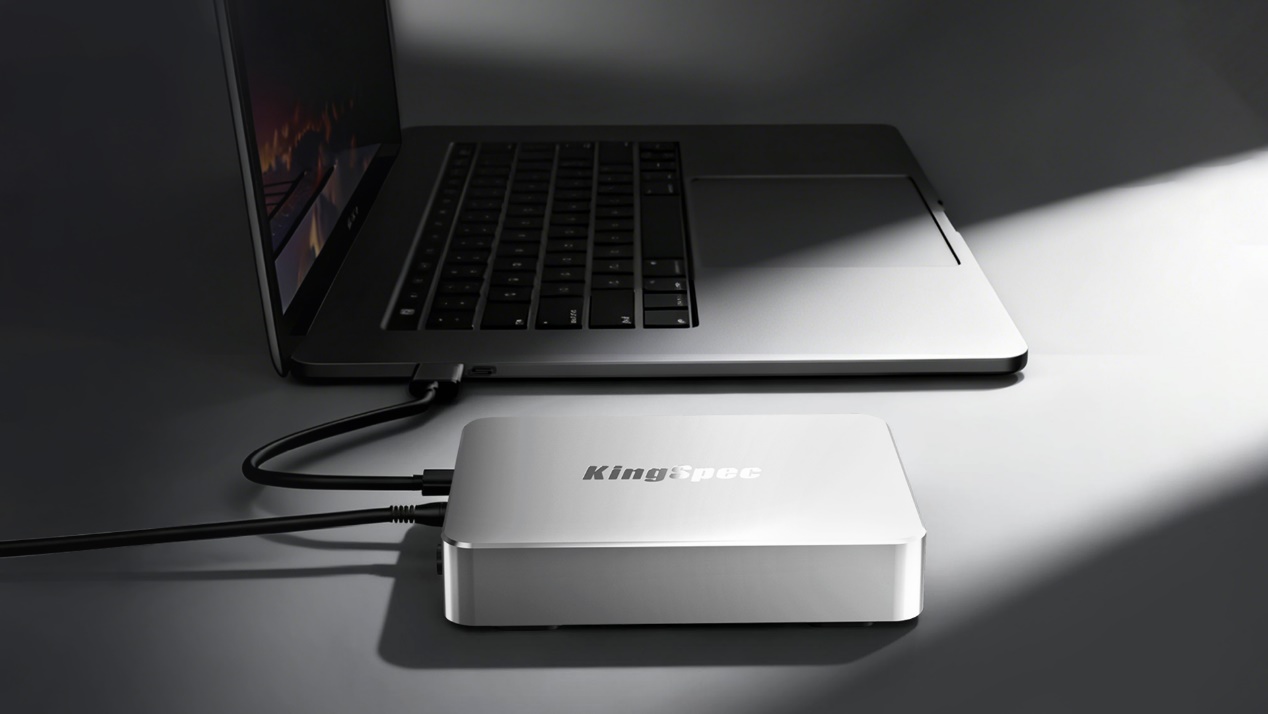
Before diving into specs and shopping lists, let's start with the most basic question — what exactly is a NAS, and is it something you should spend money on?
A Simple Explanation
NAS stands for Network Attached Storage. Think of it as a small, dedicated computer that sits on your home or office network and does one thing really well: store files and let everyone on the network access them.
Unlike a regular external hard drive that plugs into one computer, a NAS connects to your Wi-Fi router or network switch. Once it's connected, every device on your network — your laptop, your phone, your tablet, your smart TV — can read and write files to it. It's like having your own private cloud, except the data lives in your house or office, not on someone else's server.
That's the core idea. Everything else — RAID, Docker, Plex, virtual machines — is built on top of that simple foundation.
Five Signs You Probably Need a NAS
Still not sure if a NAS is right for you? Here are five everyday situations that usually push people toward buying one.
Your phone storage is full. Again. You've already paid for iCloud, Google One, and maybe even Dropbox. Your camera roll has 47,000 photos and you're afraid to delete anything. A NAS gives you a single, centralized home for every photo and video you've ever taken — accessible from any device, no monthly subscription required.
Your team shares files through chat apps. If your small business or studio still passes documents around via WeChat, Slack messages, or email attachments, you already know the pain. Version confusion, missing files, no access control. A NAS replaces that chaos with organized, permission-controlled shared folders.
Your creative work is scattered across five hard drives. Video editors, photographers, and designers often end up with a drawer full of portable drives, each one holding a different project. A NAS consolidates all of that into one searchable, backed-up library.
You worry about cloud services changing their terms. Cloud storage is convenient — until the provider raises prices, changes storage limits, or shuts down entirely. With a NAS, your data stays in your physical possession. You decide the rules.
You want a home media server. Streaming your own movie and music collection through Plex, Jellyfin, or Emby is one of the most popular reasons people buy their first NAS. Load your media library once, then watch from any screen in the house.
Who Is This Guide For?
This guide is written for four types of readers. You probably fit into at least one of these categories.
User Type | Typical Need | NAS Priority |
Home user | Photo/video backup, basic file sharing | Simplicity, low noise, affordable price |
Content creator | Video editing, large media libraries, fast file access | Speed, SSD support, 4K streaming capability |
Small studio or team | Collaborative file sharing, project management | Multi-user access, reliability, expandability |
Small business | Centralized storage, employee file access, backup | Security, scalability, 24/7 uptime |
No matter which group you belong to, the buying process follows the same logic. Let's walk through it step by step.
Six Things to Check Before You Buy
1. Number of Drive Bays
Bays determine how many drives you can install, which sets your maximum storage capacity and data protection options.
1-bay: Perfect for beginners. A single-bay NAS is a cost-effective and user-friendly storage solution. With no RAID complexity, it offers simple setup and straightforward data management.
2-bay: Good for beginners. Supports RAID 1 (mirroring) for basic drive failure protection.
4-bay: The sweet spot for most users. Supports RAID 5 for a better balance of capacity and safety. Usually only $50–$100 more than 2-bay.
Tip: When in doubt, go with 4-bay. You can start with 2 drives and add more later. Storage needs always grow faster than you expect.
2. CPU and RAM
For basic file storage, an entry-level ARM processor with 2GB RAM works fine. For 4K Plex streaming, Docker containers, or multiple simultaneous users, look for an Intel N100 or N5105 processor with at least 4GB of upgradeable RAM.
3. Network Speed
Your NAS is only as fast as your network. Most NAS units ship with 1GbE (≈110 MB/s real-world), which handles everyday tasks well of a small team or one person business. If you work with large video files, look for 2.5GbE (≈280 MB/s). Just remember — your router needs to match. A 2.5GbE NAS on a 1GbE router still runs at 1GbE speed.
4. SSD Cache Support
Many modern NAS units include M.2 SSD slots for cache drives. These slots let you add SSD speed without giving up a main drive bay. Even one SSD cache drive makes a noticeable difference in daily responsiveness. More on this in the storage section below.
5. Software and App Experience
The operating system matters more than most people think. Before buying, watch a setup video on YouTube for that specific model. If the process looks confusing in a guided video, it will be worse in real life. Also check whether the mobile app is well-reviewed — you'll use it more than you expect.
6. Noise and Power
A NAS runs 24/7, 365 days a year. A typical 2-bay unit draws 15–25 watts (roughly $15–$25/year in electricity). Noise comes from spinning hard drives and cooling fans. If you choose an 1-bay NAS, which often comes with an SSD and has lower power consumption as well as quieter operation, is suitable to live in a bedroom or living room, — and it's one reason SSDs are gaining popularity in NAS builds.
Budget Guide: What Each Price Range Gets You
Important: Drives are sold separately. A $300 NAS still needs $150–$500 in hard drives or SSDs before it does anything.
Under $150
A typical single-bay NAS is priced between $100 and $200 for diskless models, while bundled versions with a pre-installed hard drive usually range from $150 to $300+, depending on capacity and brand.
$150–$200
Basic 2-bay units with ARM processors and 1GbE networking. Good for simple file backup and light 1080p media streaming. Not enough power for 4K transcoding or running apps.
$200–$300
The beginner sweet spot. Proper 2-bay NAS hardware with mature software ecosystems, decent processors, and reliable automated backup. Handles 1080p Plex, remote access, and basic photo management.
$300–$500
This is where things get interesting. You'll find 4-bay options with x86 processors (Intel N5095, N100), 4GB RAM, 2.5GbE ports, and M.2 SSD cache slots. Smooth 4K streaming, Docker support, and room to grow. Best value for most readers of this guide.
$500+
Serious hardware for small businesses and power users. Expect Intel N100/Core i3 processors, 8GB+ RAM, and multiple 2.5GbE or 10GbE ports. Can run virtual machines, serve 10+ users, and handle professional video editing storage.
Choosing Your Storage: HDD, SSD, or Both?
This decision affects your daily experience more than any other. Here are your three options.
Option A: All-HDD
The traditional choice. NAS-rated hard drives offer massive capacity at the lowest cost per terabyte.
Best for: Large media libraries, completed project archives, cold storage where files don't get accessed constantly.
The catch: HDDs are mechanically slow at handling multiple simultaneous requests. When several users access different files at once, performance drops noticeably. They also generate noise and heat.
Option B: HDD + SSD Cache — Best Value Upgrade
This is the configuration we recommend for most users. Your bulk data lives on HDDs. One or two SSDs in the M.2 cache slots automatically store your most frequently accessed files. Hot data gets served at SSD speed. Cold data stays on cheap, spacious HDDs.
Best for: Most home users and small businesses who want fast everyday performance without paying all-SSD prices.
Why your cache SSD choice matters: NAS cache is one of the most demanding SSD workloads. The drive handles heavy writes 24/7, month after month. Consumer-grade SSDs designed for light laptop use can burn through their rated lifespan surprisingly fast in this role.
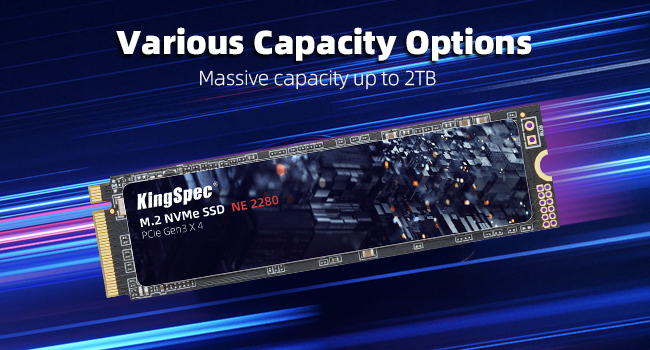
KingSpec NE Series and NX Series (PCIe 3.0) SSDs are fast enough for this scenario:
High endurance ratings that match the sustained write demands of NAS caching
Consistent write speeds that don't collapse during prolonged operations
Low power draw that keeps heat and electricity costs down over years of 24/7 running
Advanced wear leveling and error correction for long-term reliability
A single 512GB–1TB KingSpec NVMe SSD as a cache drive delivers a transformative improvement in NAS responsiveness for a very modest investment.
PCIe 3.0 NX Series SSD 2280 - KingSpec
PCIe 3.0 NE Series SSD 2280 - KingSpec
Option C: All-Flash SSD
Every bay filled with SSDs. No mechanical drives at all. Maximum speed, zero noise, minimal power consumption.
However, SSD prices have risen significantly in recent months, making all-flash NAS setups less cost-effective for most users. This trend is not ideal for those considering a fully SSD-based storage solution, as the overall investment has become notably higher. Unless there is a clear and immediate need—such as video editors working with 4K footage or AI workflows requiring rapid dataset access—most users may want to reconsider or delay this approach.
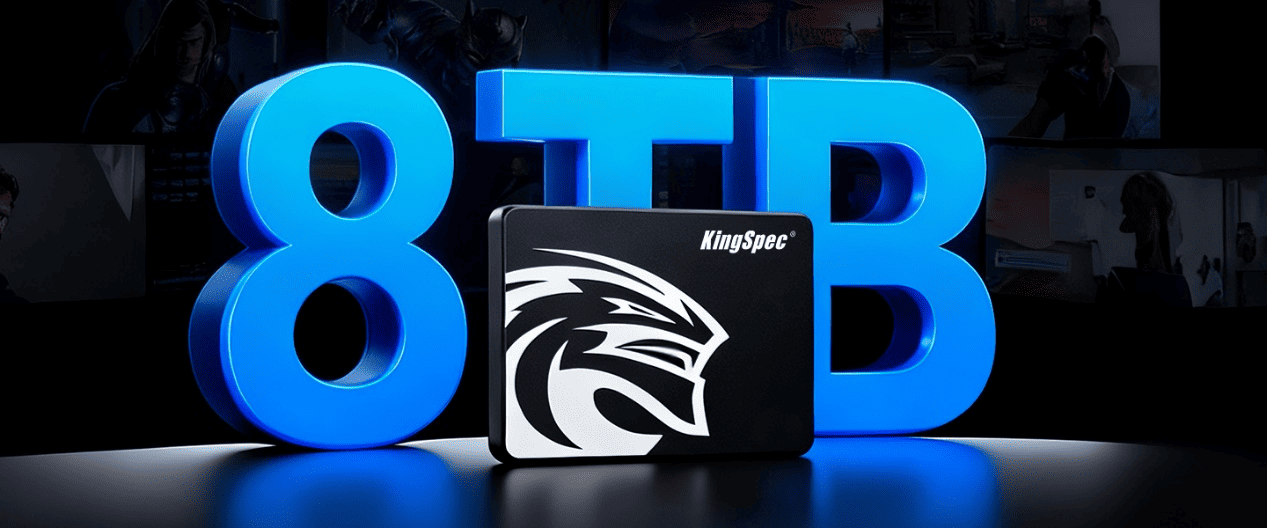
For those who still prefer an all-flash NAS, 2.5-inch SATA SSDs offer a more cost-efficient alternative. High-capacity options like the KingSpec P3 series (2–8TB) can serve as a practical replacement for HDDs in cold or static data storage scenarios. They deliver key advantages including lower power consumption, silent operation, and faster performance, while remaining more affordable than M.2 PCIe SSDs—making them a balanced, cost-effective choice for SSD-based NAS deployments.
Quick Decision Guide
Your Situation | Recommended Setup |
Bulk backup, large media archive | All-HDD |
Everyday home/office use, mixed workload | HDD + KingSpec SSD cache |
Video editing, need silence and speed | All-flash with KingSpec SSDs |
Not sure yet | Start with HDD, add SSD cache later |
Five Mistakes Every Beginner Should Avoid
RAID is not a backup. RAID protects against a single drive failure. It doesn't protect against accidental deletion, ransomware, fire, or theft. Follow the 3-2-1 rule: 3 copies, 2 media types, 1 off-site.
Budget for drives, not just the NAS box. Add drive costs + a $50–$100 UPS battery backup to your total budget. The UPS prevents data corruption from power outages.
Match your network speed. Don't buy a 2.5GbE NAS if your router is 1GbE. Upgrade both together, or save the money.
Don't use desktop drives in a NAS. A normal desktop HDDs or consumer SSDs aren't designed for 24/7 operation. Use NAS-rated drives built for continuous workloads.
Don't set it and forget it. Enable automatic update notifications. Check firmware updates monthly. Monitor drive health through your NAS dashboard.
Coming Soon: KingSpec Enters the NAS Space
After 17 years of SSD engineering and partnerships with companies like Lenovo, ASUS, Sony, and NEC, KingSpec is building something new — not just NAS-optimized SSDs, but a complete NAS solution.
We're not ready to share specs yet. But here's what we've been focused on:
Setup in minutes, not hours. No weekend-long configuration sessions.
SSD performance built in from day one. Not bolted on as an afterthought.
Silent enough for your desk. Not just your server closet.
Designed for creators and small teams. Not just IT administrators.
More details are coming in 2026.
FAQ
1. NAS vs. external hard drive?
An external drive connects to one computer. A NAS connects to your network so every device can access the same files simultaneously, with backup automation and user permissions built in.
2. Does a NAS run 24/7? What about electricity?
Most people leave it on continuously. A 2-bay NAS costs roughly $15–$25/year in electricity. Many models support scheduled sleep modes.
3. 2-bay or 4-bay for beginners?
4-bay if your budget allows. Start with 2 drives, add more later. You get better RAID options and room to grow.
4. How much SSD cache do I need?
500GB covers most home setups. 1TB for small businesses with multiple users. The cache only needs to hold your most frequently accessed data, not your entire library.
5. Can a NAS replace cloud storage?
For local access, yes. Most NAS platforms also offer remote access apps. For critical data, use both — NAS as primary storage, cloud as your off-site backup.